
- To edit a text in the editor, click on the corresponding text with the mouse.
- Enter your own text.
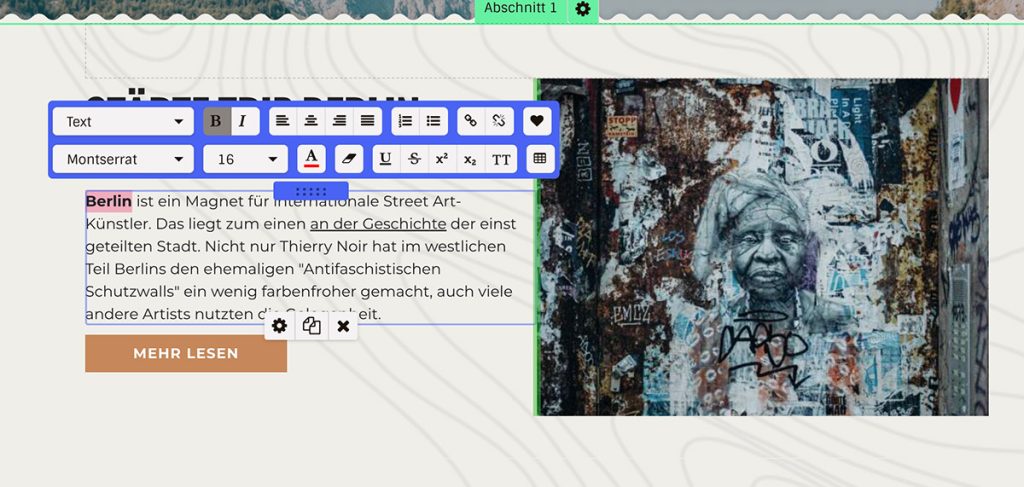
- The text editor will open, which you can use to further format the text and customize its appearance (more information about the text editor and its functions here).
Button names and the text logo can also be edited in this way.
Format text
To change the font, font size or font color or to use the other options of the text editor, select the desired text and choose the desired formatting in the text editor.
A text box is always as big as its content. Add spacing if you want to change the size of the box.
Insert text from an external source
You can also copy and paste text from your Word document or another external source into a text box. Formatting is not adopted.
- Select the text in the original source and copy it (via right-click menu, keyboard shortcut, depending on the external source)
- Go to the editor and click on the text field where you want to insert the text
- Click the keyboard shortcut Ctrl + V (Windows) or CMD + V (Mac)
Edit text in the menu
To edit the texts of the menu items, go to the menu item settings.