
1. Home
  2. Online backup
  3. How do I activate two-factor authentication for the online backup?

How do I activate two-factor authentication for the online backup?

Two-factor authentication (2FA) is an additional security measure that protects access to sensitive data using a two-step process. In addition to the classic password, a second factor (a one-time password) is required, which is provided via a corresponding application. This ensures that only authorized users can access the data.

For security reasons, activation of 2FA is mandatory for all online backup accounts.

Recommended applications

Google AuthenticatoriOSAndroid
Microsoft AuthenticatoriOSAndroid
LastPassiOSAndroid
The authentication application must be installed on the 2FA device (e.g. cell phone, tablet, laptop, etc.). This application will be used in future to generate the one-time code (one-time password).
  1. Go to the online backup login page at https://backup.hosttech.eu/login.
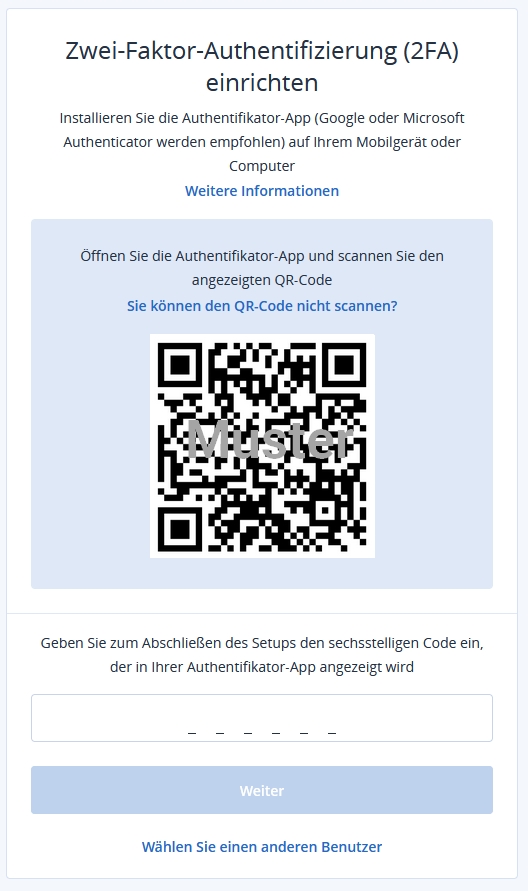
  2. After entering your login details (username & password), you will be asked to set up two-factor authentication for your user account.
  3. Now scan the QR code displayed with an authentication app. If it is not possible to scan the QR code, you can also use the 32-digit code below the QR code and enter it manually in the app.
  4. To complete the setup, you now need to enter the six-digit code that is generated and displayed in the app. This code is automatically regenerated every 30 seconds.
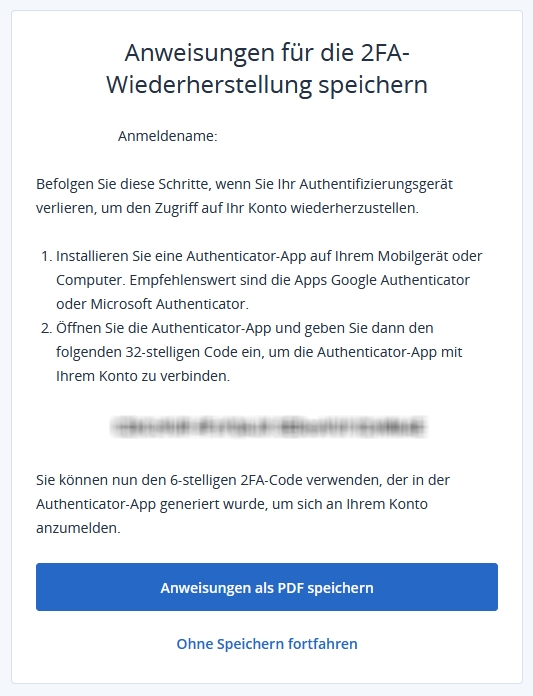
Important: it is strongly recommended that you save the instructions for the 2FA recovery. During setup, you have the option of saving them locally as a PDF. Alternatively, you can also print out the QR code or take a screenshot and save it.
The temporary one-time password (the code) is required, for example, to reset the two-factor authentication if the two-factor device is lost.

Updated on 21. April 2026

Was this article helpful?

Related Articles

Benötigst du Support?
Deine Lösung steht noch nicht in den FAQ? Keine Sorge, wir sind für dich da.
Kontaktiere uns!