In this article, we explain how to activate DNSSEC in domain reselling.
You can find more information on what DNSSEC is and what advantages it offers in our blog post.
Enable DNSSEC with hosttech nameserver:
- Log in to your myhosttech customer center and go to DNS Editor > DNS management.
- Click on Edit for the relevant domain.
- Activate and save DNSSEC above. The DNSSEC key is now displayed.
- Now open the domain reselling in a new tab/window via myhosttech customer center.
- Navigate to Domains > Overview and click on the relevant domain to display the domain details.
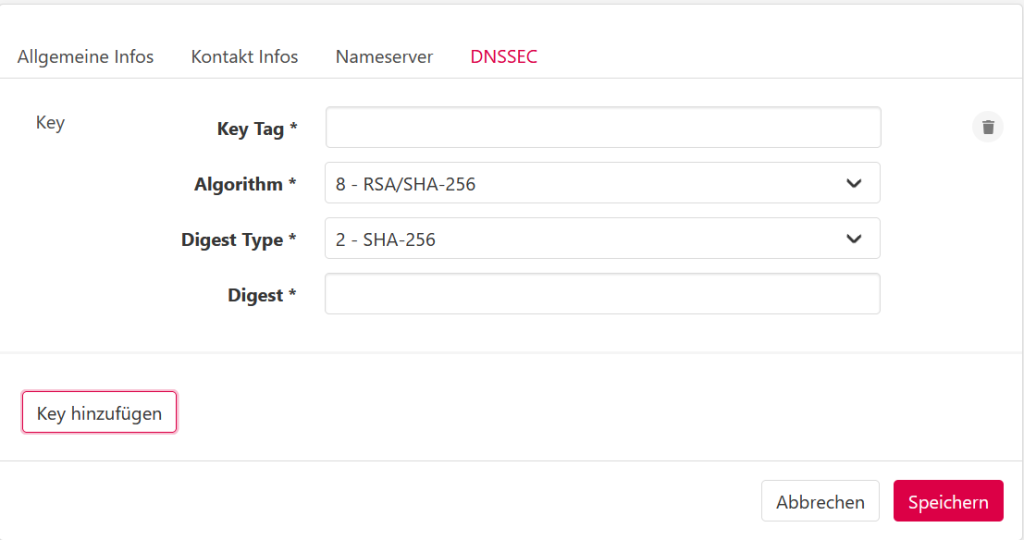
- Switch to the DNSSEC tab/tab and select“Add key“.
Now you can add the DNSSEC record by copying and pasting the DS records from the zone. Then click on confirm and save the change.